New Roll Out: All About Mapping Performance and Sharing Enhancements
Improved Mapping Performance
There’s mapping and there’s Mapline mapping. The difference? Improved mapping performance! We believe that with better mapping performance comes better results and faster analysis. So we are proud to announce that for the new rollout, our users will be able to have a faster mapping experience. Try it out now and speed up your data analysis!Sharing Enhancements
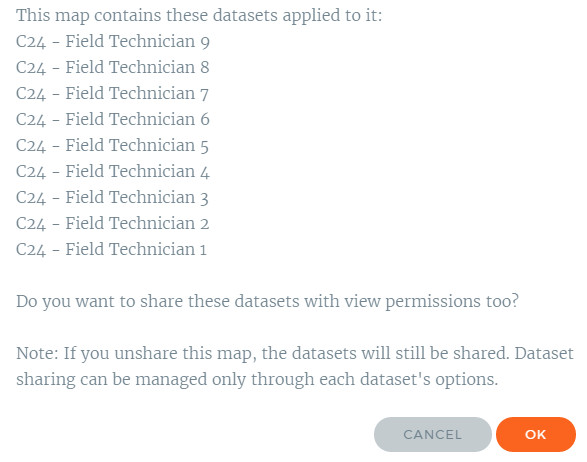
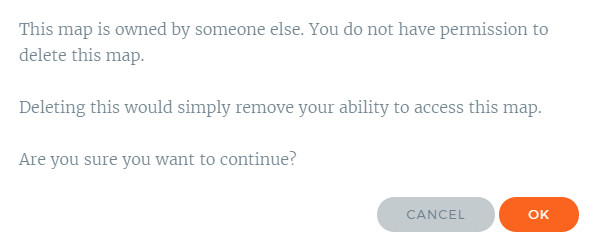
Another equally important rollout is the enhancement of map-sharing option. First, users to whom the maps that are shared with edit permissions can no longer delete a map. Instead, the owner of the map or the administrator can just un-share the map with them. When a user is trying to delete a map, a message prompt will appear:
Be Mapline Ready!
In the 2nd quarter of 2017, with Mapline giving you the best mapping experience and the best value for money, don’t be just mapping ready. Be Mapline ready!New Updates
Dot Density
This new addition reveals where locations are clustered. Many users have been asking for this feature because this is especially useful when mapping locations or phenomena that change dramatically over an area.

Ability to Save Column Widths on Spreadsheet Page
You can now slide the ruler of the columns in any way you want, and it will be saved. When maps are shared, those with whom the maps have been shared will also see the saved column widths of the spreadsheet.
Ability to Delete Selected Rows from a Dataset
We’ve made it easier to delete locations from your datasets. Now you don’t need to click the locations one by one to delete them. Just click the rows that you want to delete, click the “Selected rows” on the drop down arrow of “Delete” button and bam! Your locations will be deleted all at once.

Added Support for Degree Formatted Coordinates
Mapline can now support decimal and degree coordinates.
Miscellaneous Bug Fixes
There are a few bugs that we captured and fixed. We thank you all for your feedback and queries. If not for them, we would not be able to make these updates successful.
Let us know if you have more suggestions. We are open to feedback. What else would you like to be simpler to accomplish while mapping with us?
V5 Update Summary
Mapline’s V5 Update Takes Simple to a New Level
What better way to improve than to remain true to our name – Mapline. Hence, we find that simplicity is essential in creating a powerful data analysis tool. The simpler it is to use, the better the results of your decisions. With simplified navigation, we can make mapping and analysis become entrenched within your organization. Here are some of the changes in our V5 update that add up to the new “look” of Mapline:- What’s New Link – In just one click, you can see the features/changes that were recently added. This is a great addition since you will be informed of the changes before you actually start mapping.
- Menu in the Logo – As you click the Mapline logo, you will see the Datasets and Maps options – so you can quickly jump right into mapping!

- Profile options in top right menu – Need to change something on your profile? Just click your name at the upper right corner and click “Profile.”

- Home and Account pages are mobile-friendly – With more and more users reviewing their accounts using their hand-held devices, we’ve optimized more of our site for mobile-friendly viewing and navigation.
- Plan limits and geocoding limits display on bottom left – Here’s a summary of your plan limits so you would know what has been consumed and what are the remaining limits – strategically located to keep you informed.

- Messages appear when logging in – >After logging in, a message will appear at the bottom of the page – be it a reminder, a tip or a suggestion.
- Simplified navigation menu – Need I say more?
- Your Data Stays in Its Original Format – Previously, the order of your columns and your column headers could be changed when they were uploaded. Now, your data will be preserved exactly as you uploaded it, both in the spreadsheet view and in the bubble on the maps.
- Territory Reports to our Coverage Overlay Feature – Now, instead of having to draw custom circles around each pin to get a territory report, you can use the coverage overlay to do it for you. Then you can click on whichever location you want to get a report for, and Mapline will show you all the data within that coverage area.

Take Features from Good to Great
We’ve seen a shift this year as we continue to develop features and make changes so that you can create actionable insights from your data while making your mapping more useful. So be on the lookout for more updates to our current features in 2017.What to Expect in 2017
As 2016 comes to a close and 2017 gets underway, you can expect more changes for the better. As a trusted name in mapping, Mapline will continue to uphold the high value of giving you the simplest and best mapping experience in the coming year and beyond.New Features – Radius Mapping and Replace Dataset
Check Out the New Features of Our Online Mapping Software
Mapline is already the simplest mapping software on the planet, and now we’re introducing another batch of new features that will surely empower you to make mapping even simpler! Find out about how you can draw a radius circle on a map, as well as how to replace a dataset with new spreadsheet data.Creating a Radius Map
There are now 2 ways to create a radial heat map. To heat map:- Areas around pins – this allows you to identify pins that are clustered together quickly. This is the best heat mapping option to use if you want to understand accounts with large numbers of sales or customers.
- Overlapping radius areas – this new type of heat map option enables you to identify areas with high density. This is highly recommended if you are looking for the right location for a new business, or if you want to identify high-risdrop-down areas when planning for disaster management and recovery.
Replace DataSet
This new feature allows you to remove the dataset and replace it with new spreadsheet data. This is usually used in situations where you are frequently changing the datasets of your maps. There are 2 ways to replace your dataset.First Option:
- Open your map.
- Click the drop down arrow beside the dataset.
- Choose the “Edit Data” link.
- Click the “Replace” tab located at the top of the page.
- Copy your new spreadsheet data and paste it into the box provided.
- Click “Continue.”
Second Option:
- Click “My DataSets.”
- Check the box beside the data set that you want to replace.
- Click “Replace” tab located on top of the page.
- Copy your new spreadsheet data and paste it to the box provided.
- Click “Continue.”
New Feature: English Names for Foreign Territory Boundaries

… to this:

How to Use The New Feature
When creating a map, your map labels will appear in English by default. Easily choose from the top right corner the following selections:- Original (English)
- Original (Multilingual)
- Bright